
In order to add a new release for distribution, you will first need to login to Sparta Distribution's Dashboard. Once you are logged in, you can refer to this step-by-step guide that covers a basics of adding a new release to Sparta' Dashboard.
1. Select "Add Product"

2. Enter Release Info
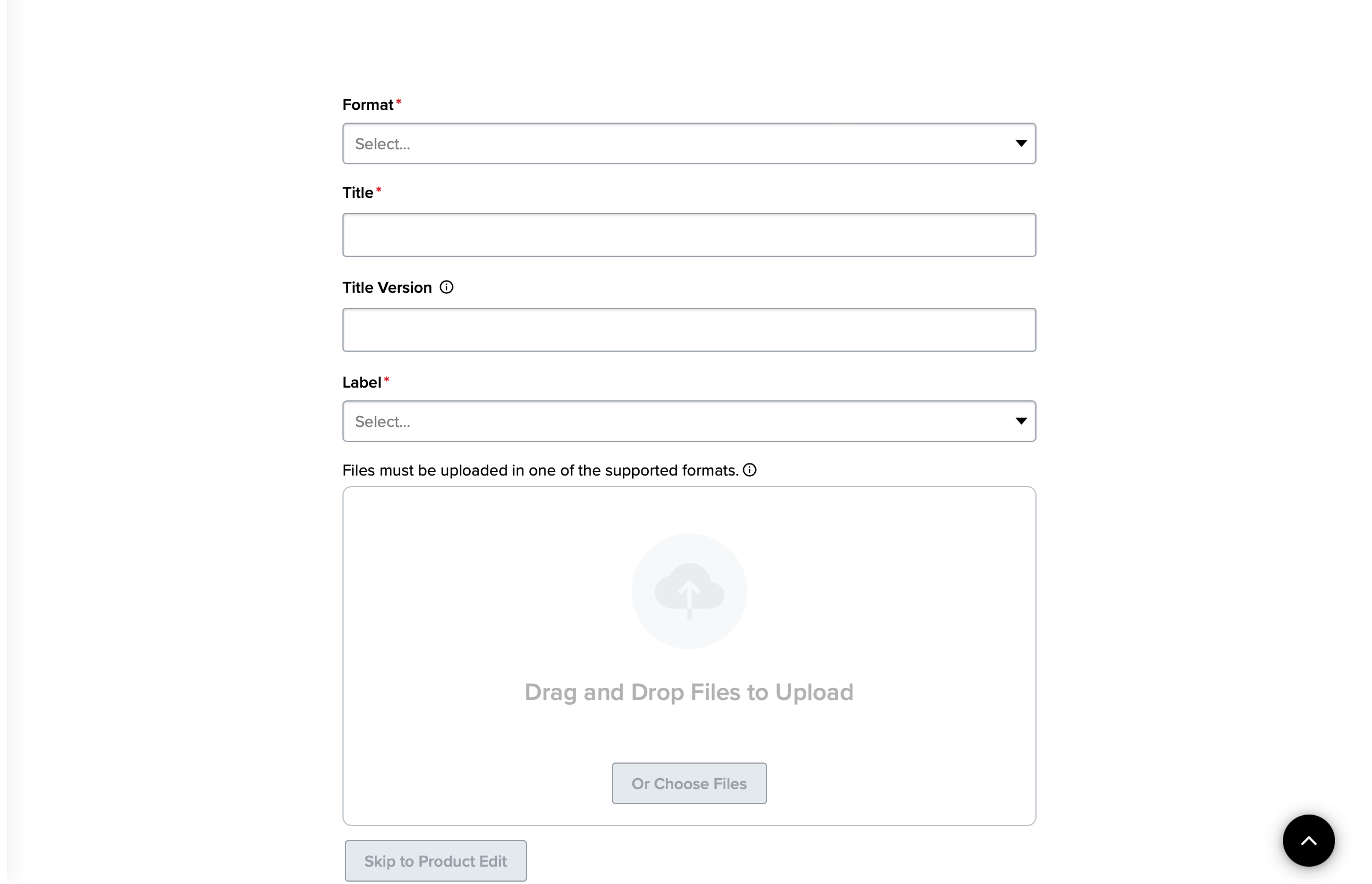
*Please enter all required information with an asterisk and then press Skip to Product Edit
3. Enter Artists & Contributors
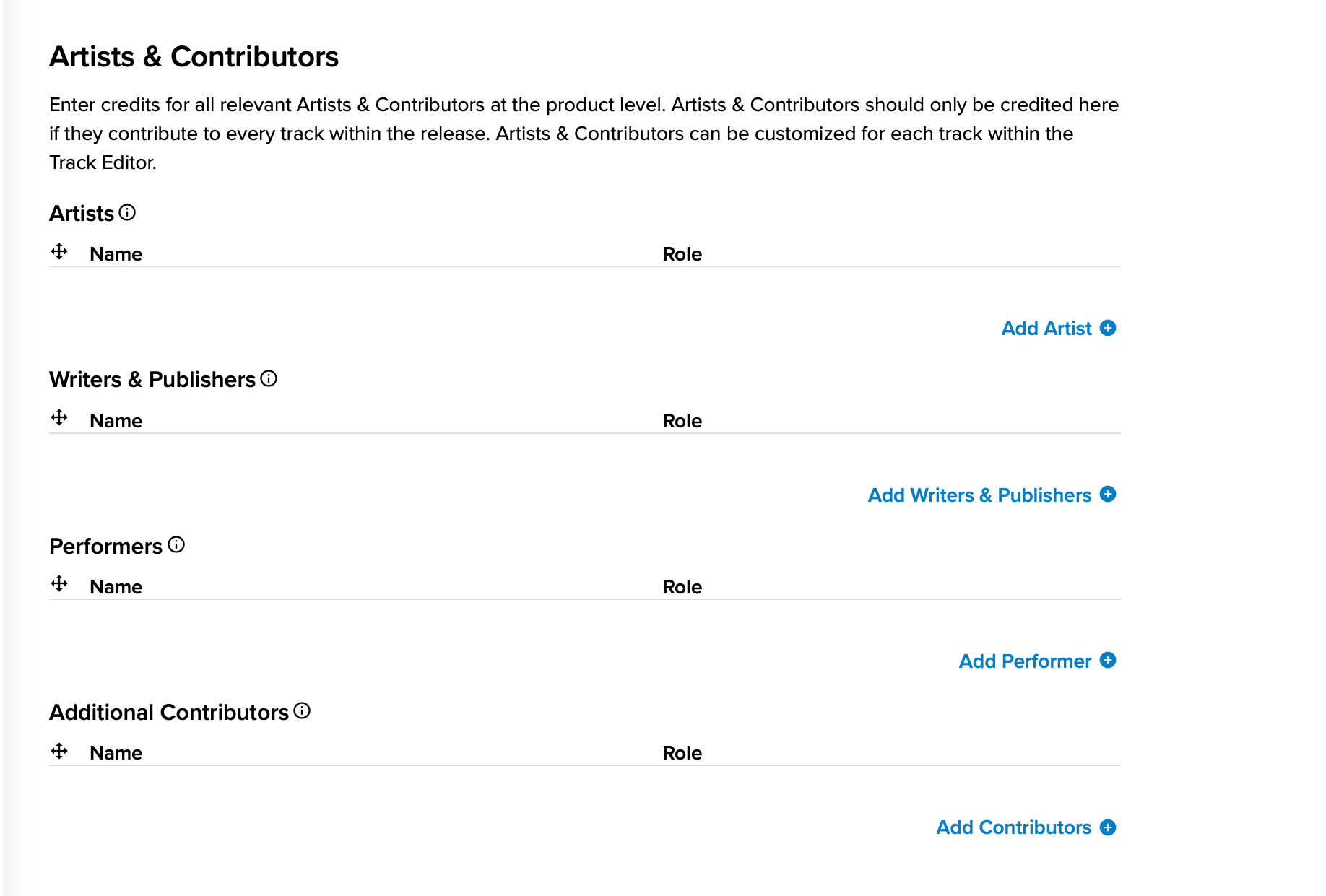
Any participating member should be credited at this stage, especially songwriters, performers, and featured artists. Each performing artist should be credited separately. You can use the dropdown menu under "Role" to assign different roles to each participant.
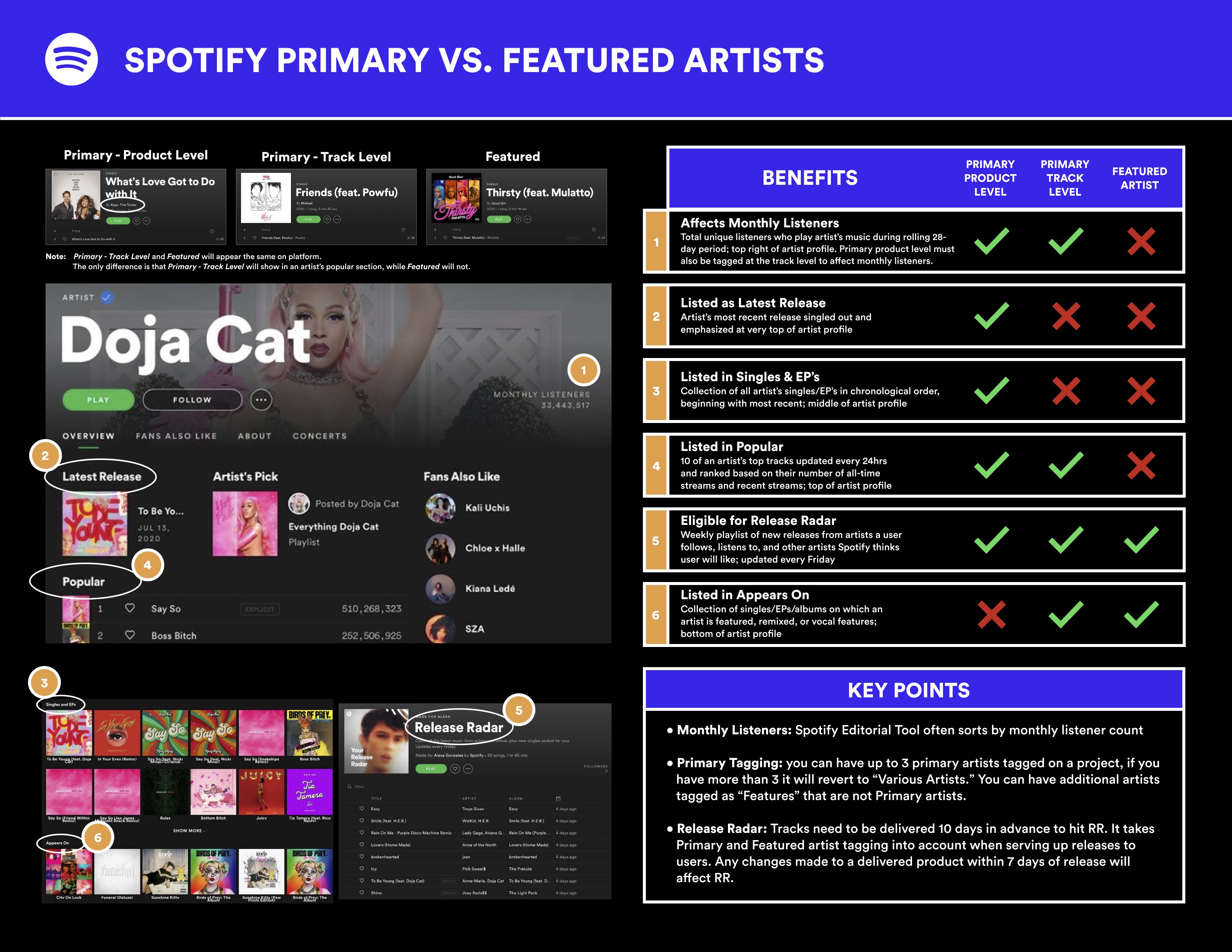
Please note that releases should have no more than 4 Main Artists. If a release has 5 or more Main Artists, DSPs may categorize/display the release as "Various Artists" which will hide it from artist pages and disqualify it from Spotify's Release Radar consideration (more on Release Radar here). Please see Spotify's guide for Primary vs. Featured Artists below.
4. Upload Audio Files and Cover Image
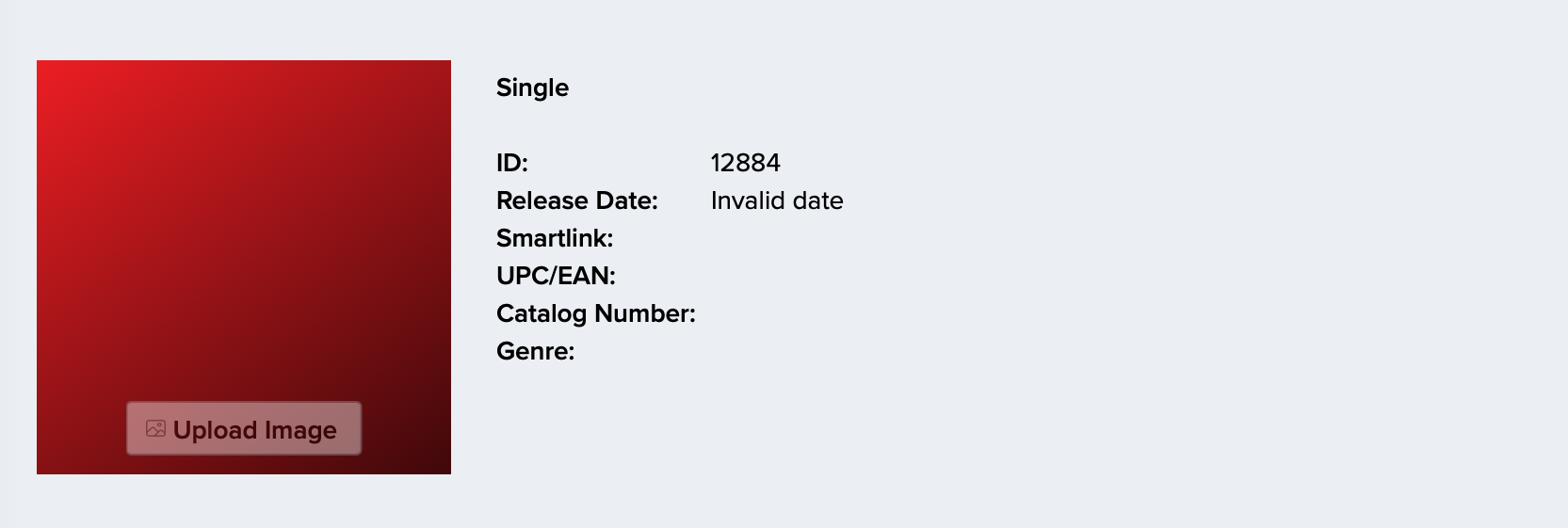
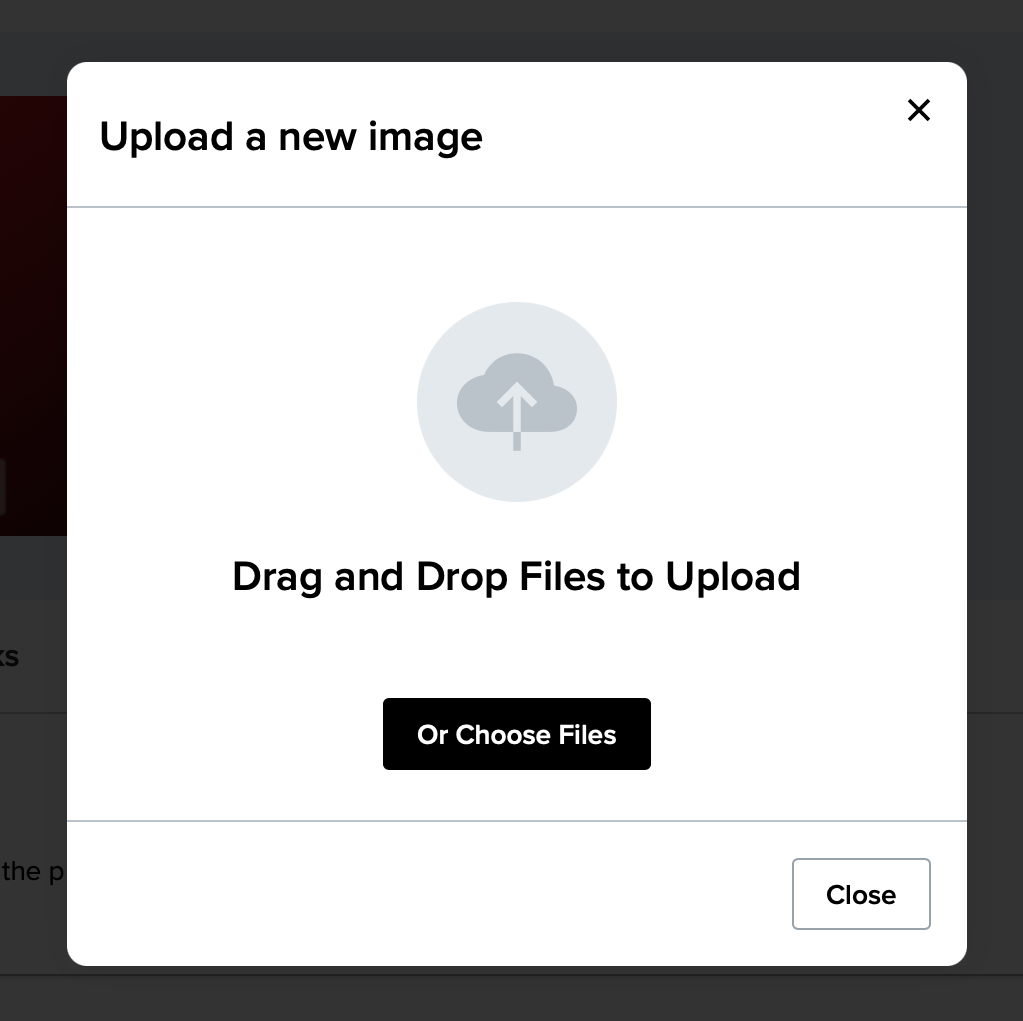
Audio files for all tracks within the release should be uploaded at this step. Please be sure to upload audio files with the correct format and specs, or your delivery might get delayed.
Recommended resolution for Cover Image is 3000x3000 pixles @ 300 dpi.
For detailed information about audio files and cover images formatting that are accepted, please refer to our guide - "Audio & Image Format Specs"
5. Add Metadata
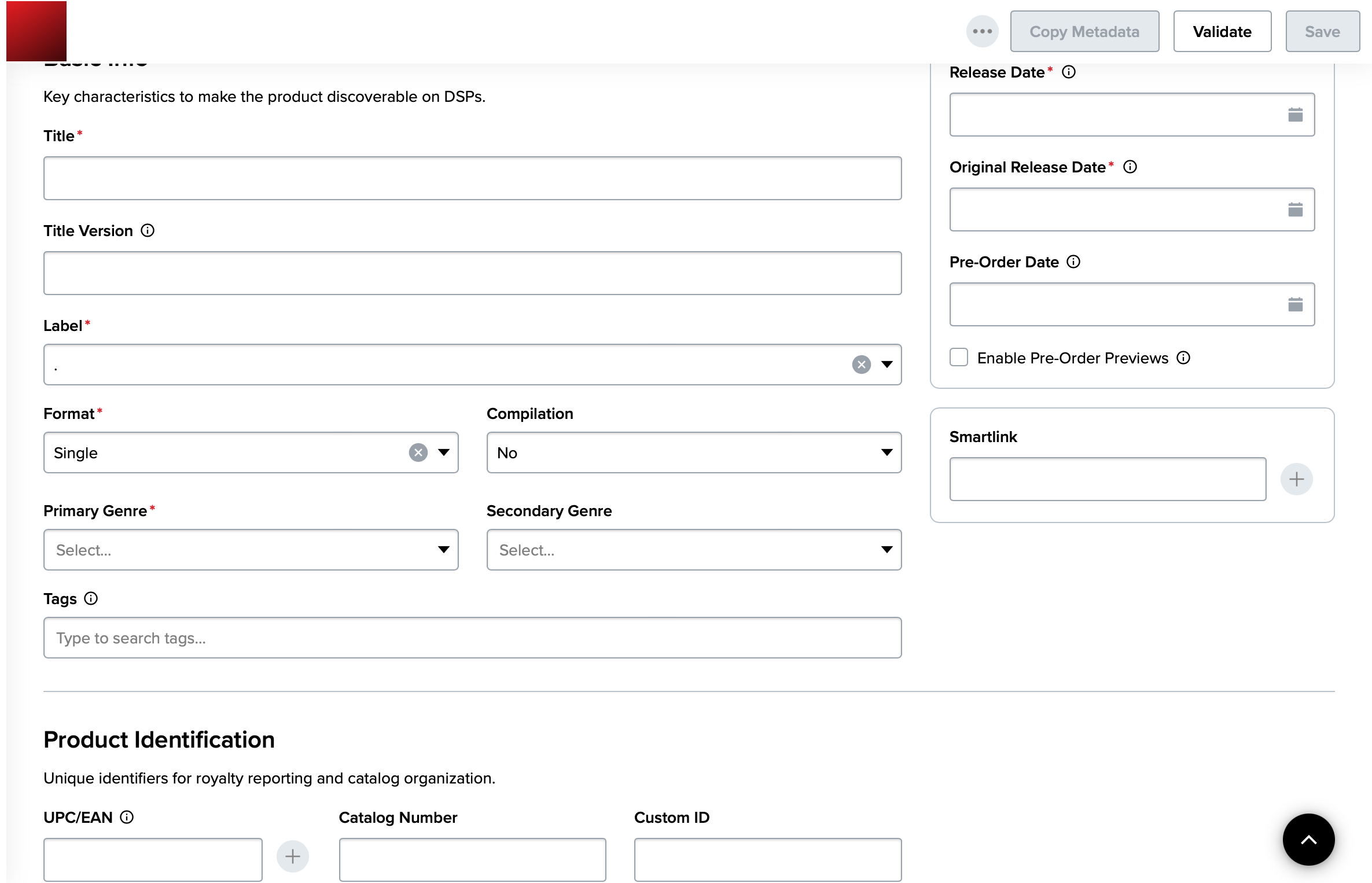
- Metadata Language - Refers to the language used for your album / track titles, credits and artist names
- Advisory
- Explicit - If your album contains profanity, mark Explicit
- Clean - If your album does not contain profanity, but has an explicit version of itself, mark as clean
- None - If your album does not contain profanity, and does not have an explicit version, mark none.
- Note: Clean and Explicit products should be setup separately with unique UPC/ISRC codes
- Release Date - The date on which you wish the release to go live on DSPs
- Original Release Date - If the album is previously released, designate the original release date
- Pre-Order Date - If you want a pre-order on your album, set the start date here. Note that not all DSPs support pre-orders
- UPC - 12~13 digit code (This will be added by our internal team)
6. Release Editor

Once you completed the above steps, you will be directed to the Release Editor. Please go through each tab and fill in the necessary information. It is imperative that you validate and save your changes after you input information.
Special attention should be paid to the following tabs.
6.1 Rights
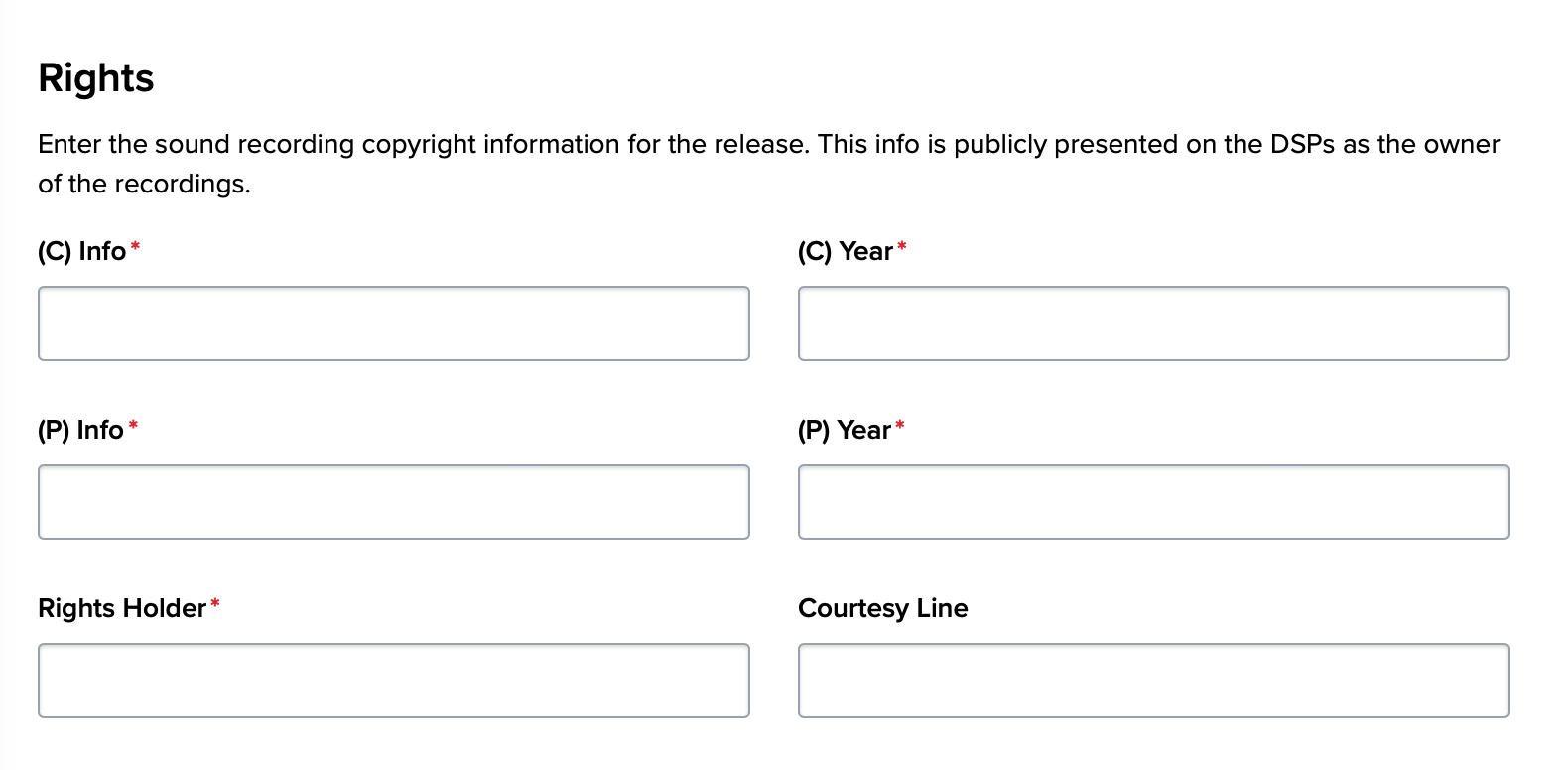
Information regarding Year of the C & P Info should be selected from the dropdown menu "Choose a Year". Do not include the year information on the C & P text itself.
6.2 Price Tiers
6.3 Tracks and Track Editor
In this tab, you are able to add and reorder new tracks. Please ensure that you are uploading a 16bit WAV file as any other size is not permitted and will delay delivery.
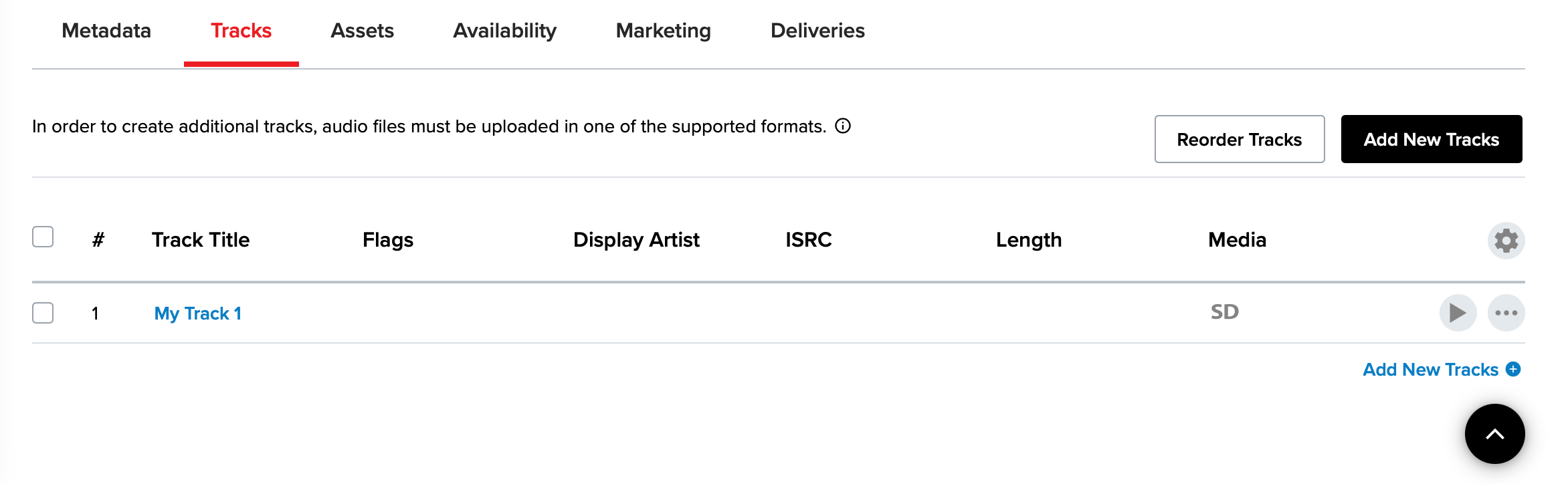
In this tab, you will be able to adjust metadata for your individual tracks. In order to open the track editor and add metadata, click the track title hyperlink.
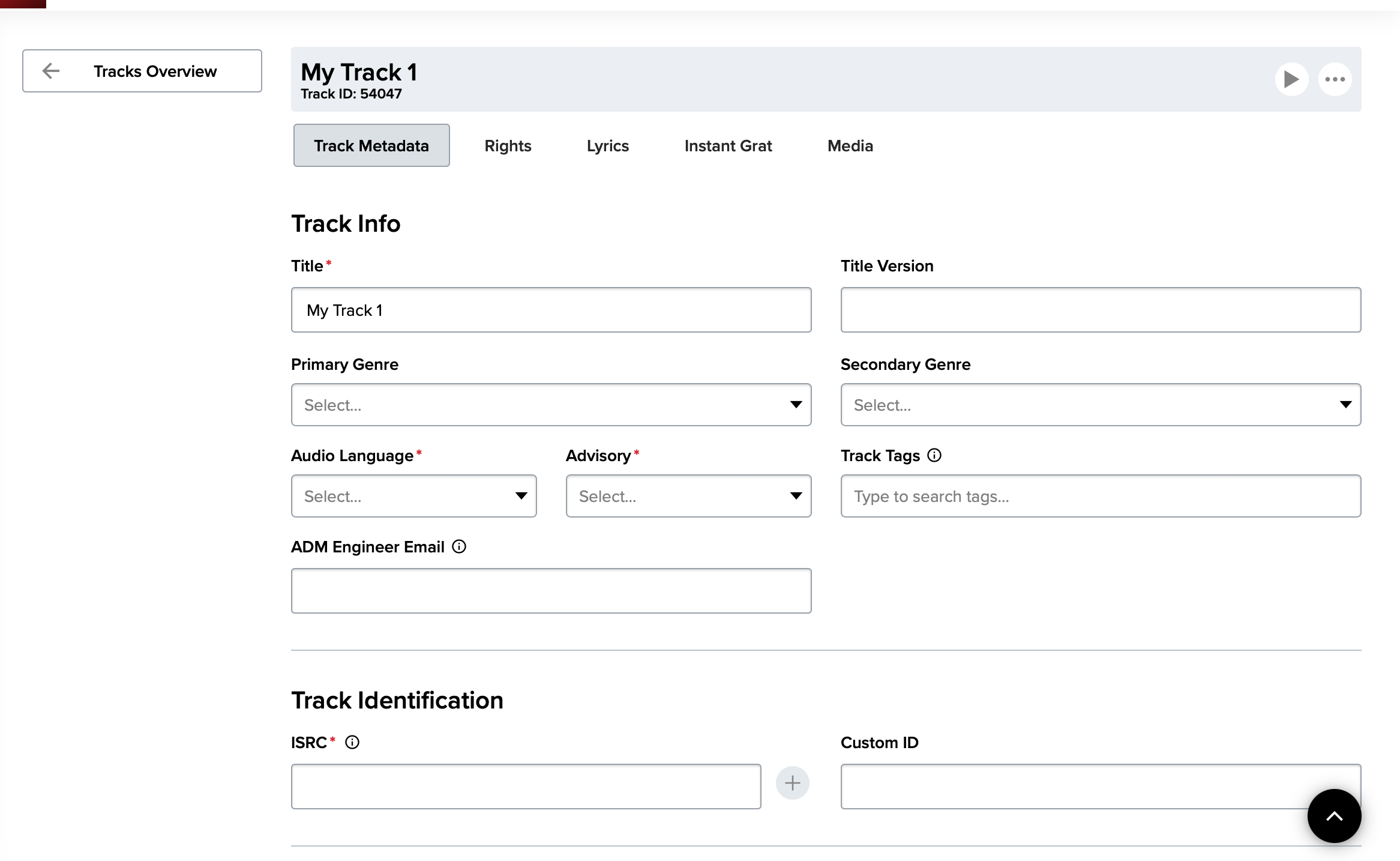
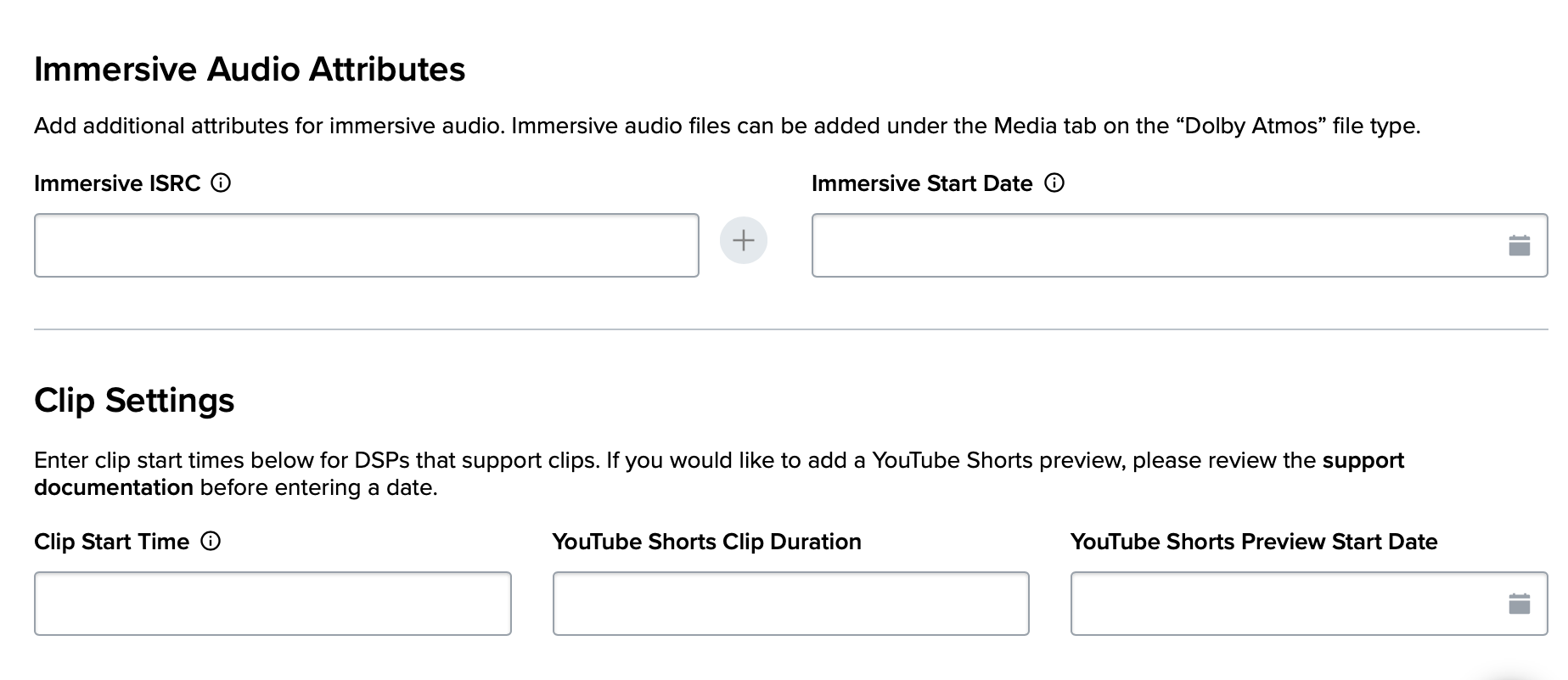
- Primary and Secondary Genre - If a track has a different categories (genre) from the album, it can be set here.
- Clip Start Time - To designate the starting point of a clip preview in TikTok, enter the second value here. For example, if you want the clip to start at 1:05 of a song, enter 65. Please note any sound over 60 seconds for Tik Tok will be muted.
- ISRC - 12~13 digit code (This will be added by our internal team)
6.4 Territories
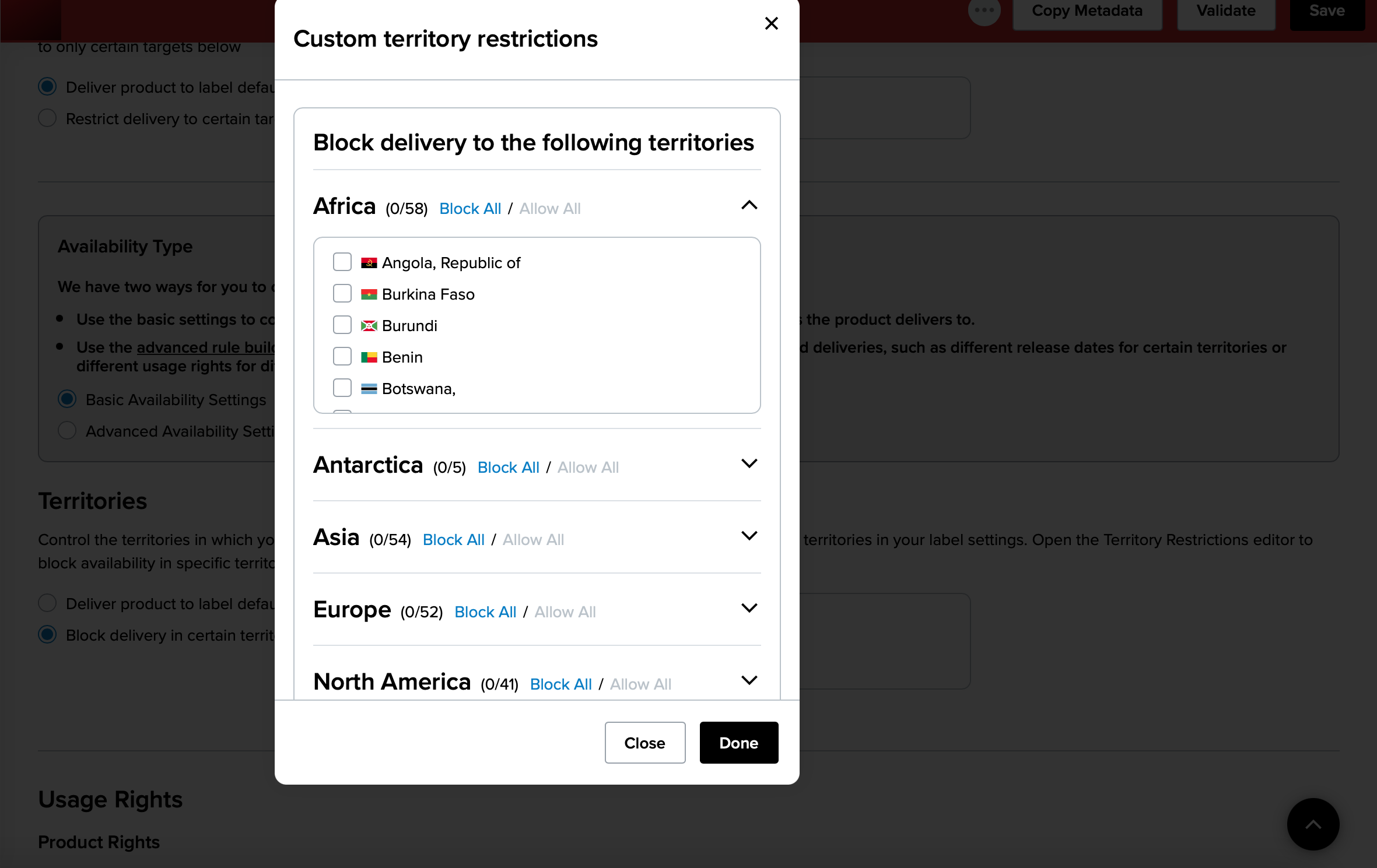
To set territories restriction, go to "Availability", click "Block delivery in certain territories" check the boxes next to the countries that should be restricted.
If you click "Deliver products to label default", the release will be distributed Worldwide.
7. Finishing Up
(Internal note: need photo of updated "request distribution" page)
Congratulations on adding your new release! If you have gotten this far, hit "Save", then "Request Distribution".
The Sparta team will review requests within in two business days and they will go live within five business days.
*Important Notes*
Business hours: Monday-Friday 10AM-6PM EST. Any requests sent before or after these hours will be attended to the next business day.
Full and Metadata Updates: Please submit these no later than three business days prior to release date. Users must request an update for changes to go into effect.
Takedown Requests: If the release status says "Review" please do not submit a Takedown request as the release has not been delivered to any DSPs.